
Takt v2
In Takt v2, every note is an outline. Around the outline are a daily journal, a task manager, and pages for the people, companies, projects and tags you write about.
This page shows how these parts work. Takt v2 is in development and not yet available.
Every note is an outline
In Takt v1, a note is a text document. In Takt v2, every note, every journal day and every project is an outline: a list of bullets, each of which can hold further bullets. Typing works as in a text editor; Tab indents a bullet, Shift+Tab moves it back out. The keyboard shortcuts follow WorkFlowy.
The structure is what makes the following possible.
Fold what you do not need
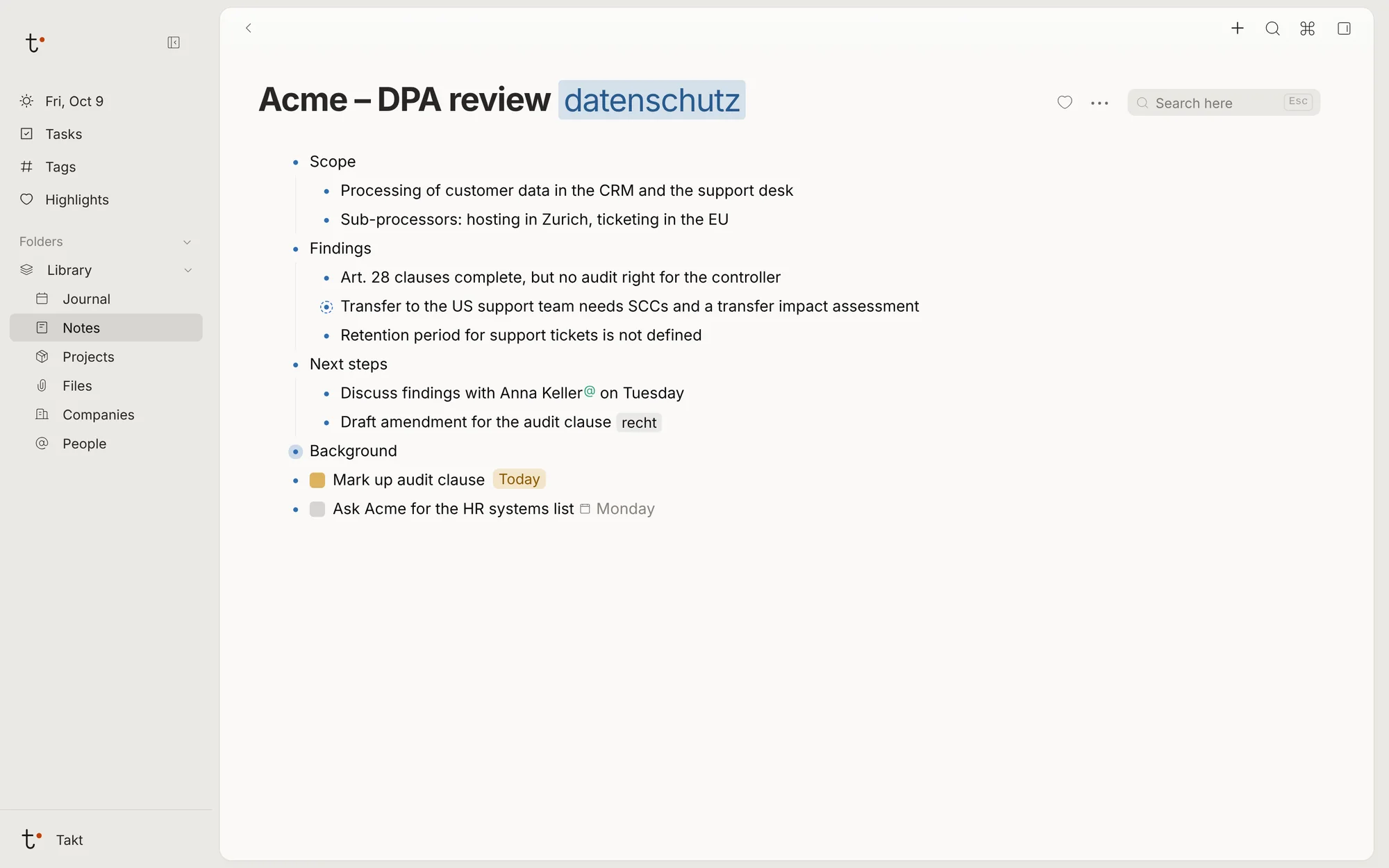
A bullet with sub-bullets can be folded. A long note then fits on one screen, and you open only the part you are working on. In the note below, "Background" is folded.
Open a single bullet as a page
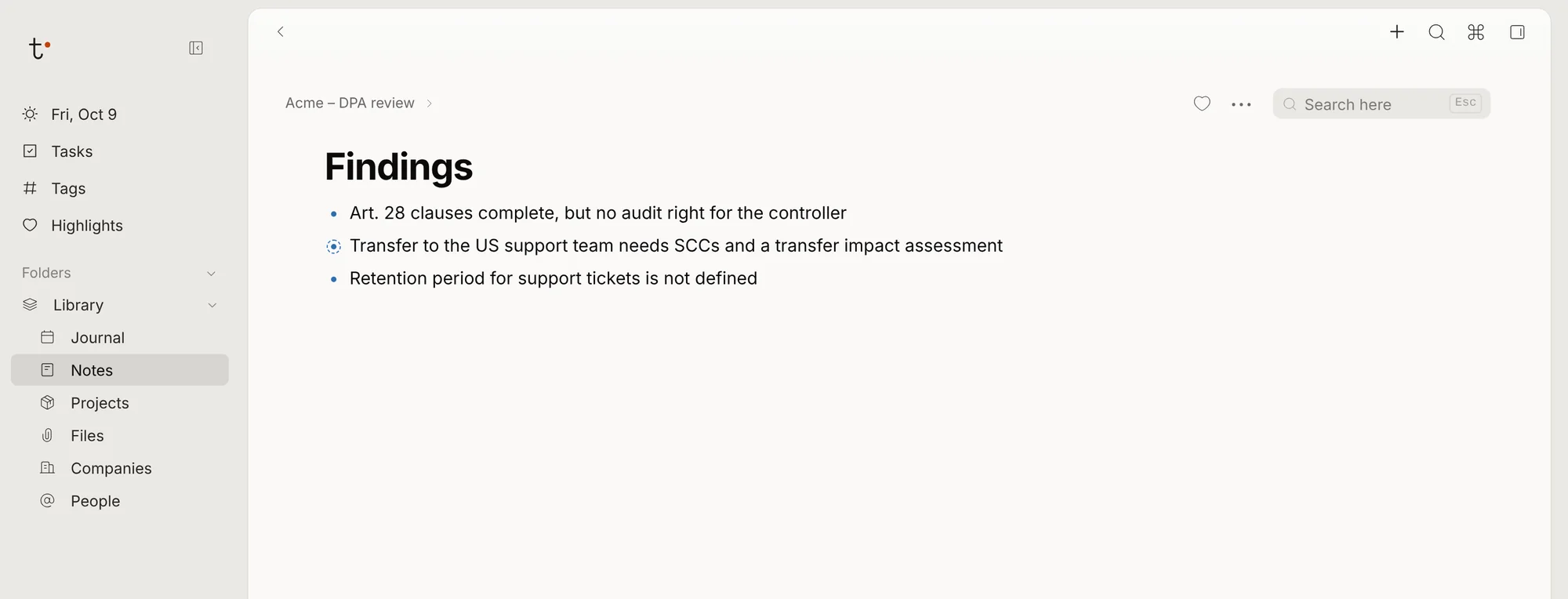
Click a bullet's dot and it opens on its own, with its sub-bullets as the page. The path above the title leads back.
The same bullet in two places
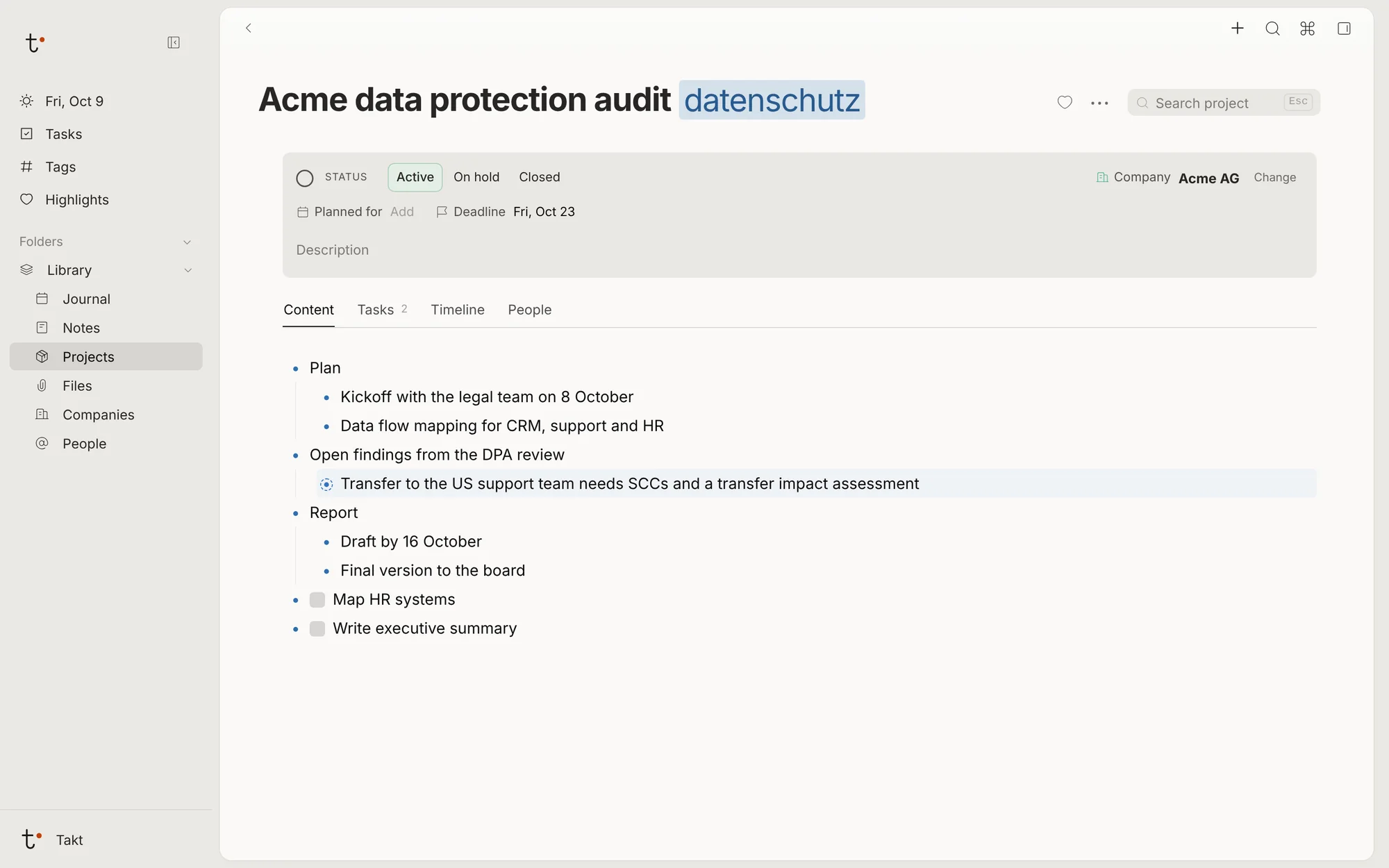
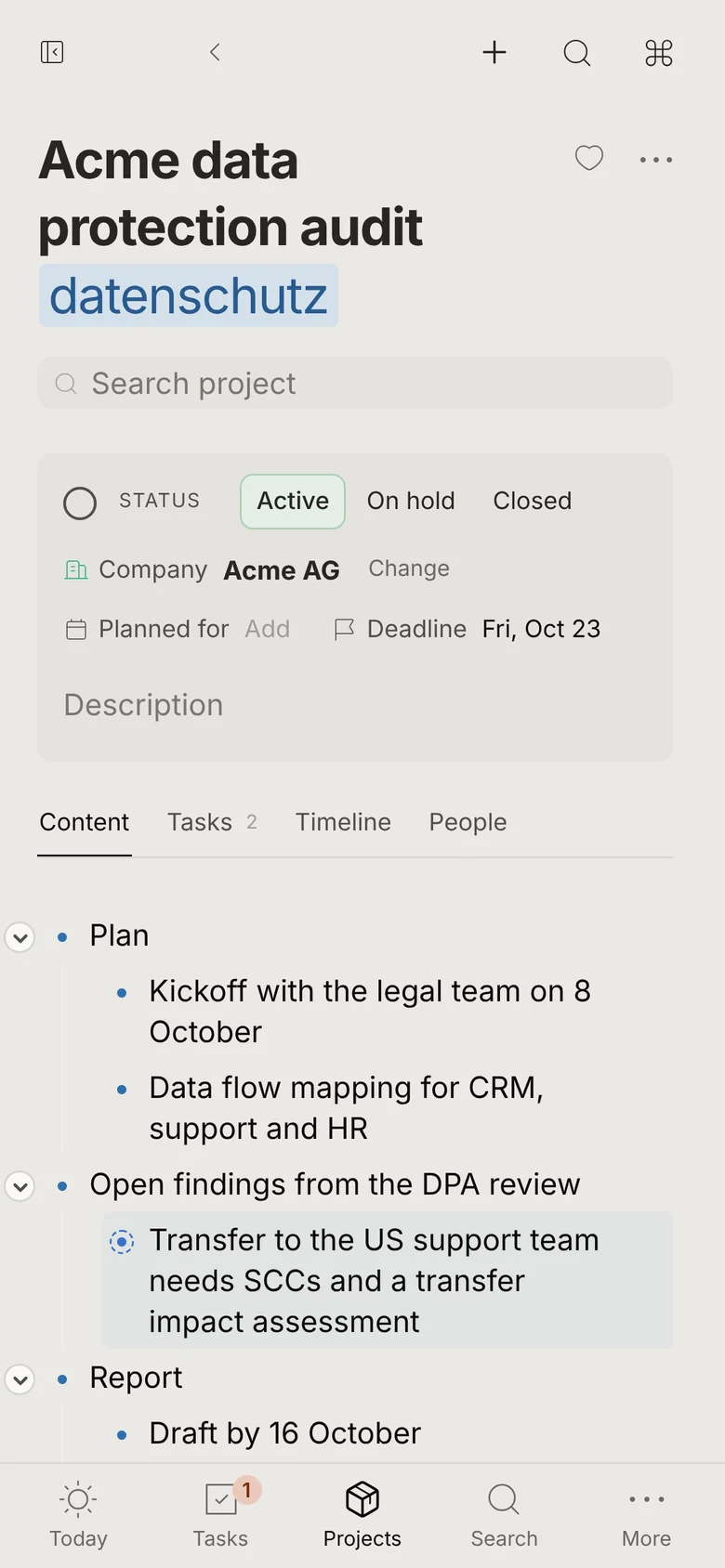
A mirror shows one bullet in several notes. An edit in any of them changes all of them. Below, a finding from the DPA review also stands in the audit project; it is shaded as a mirror.
Tables and tabs from bullets
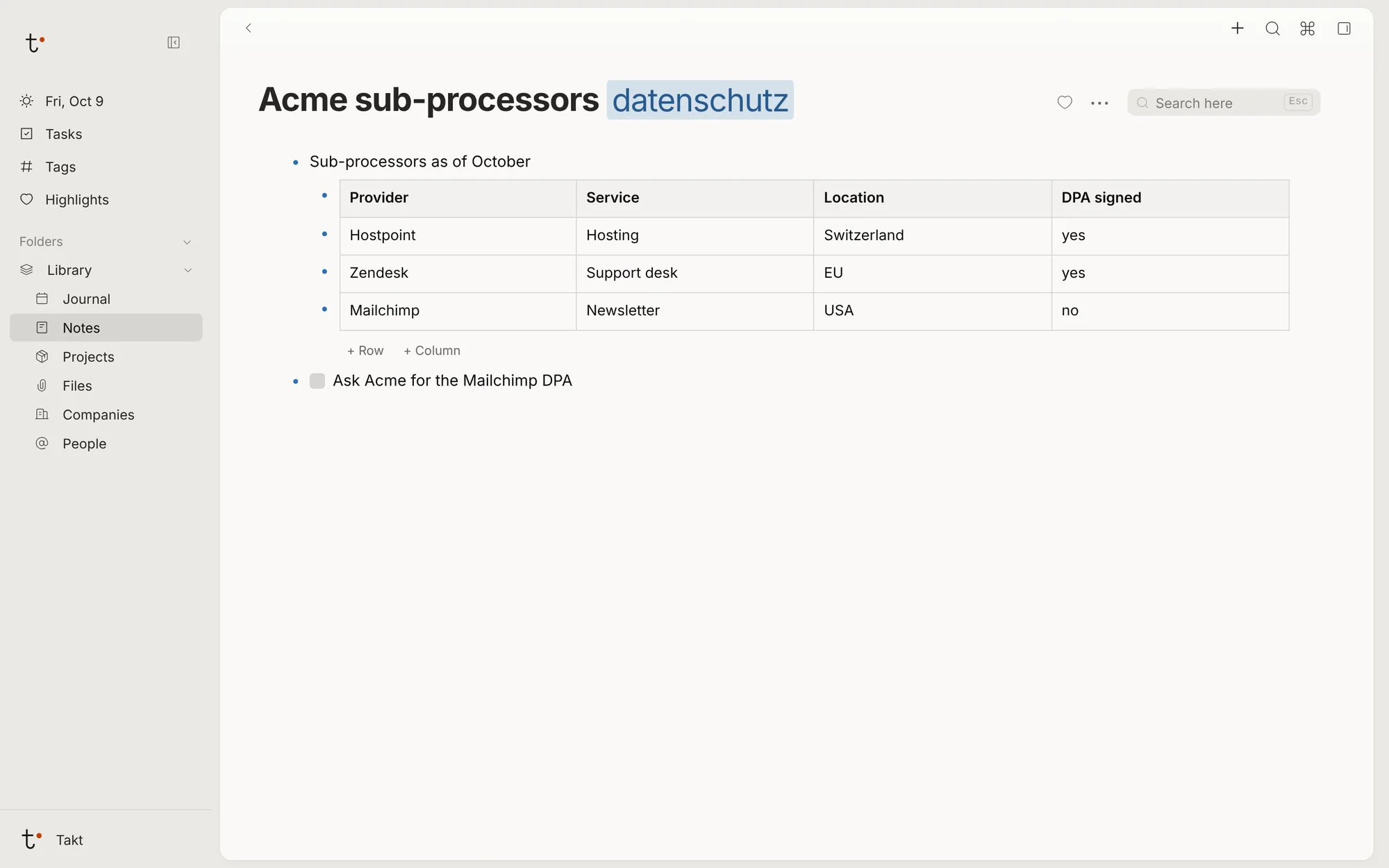
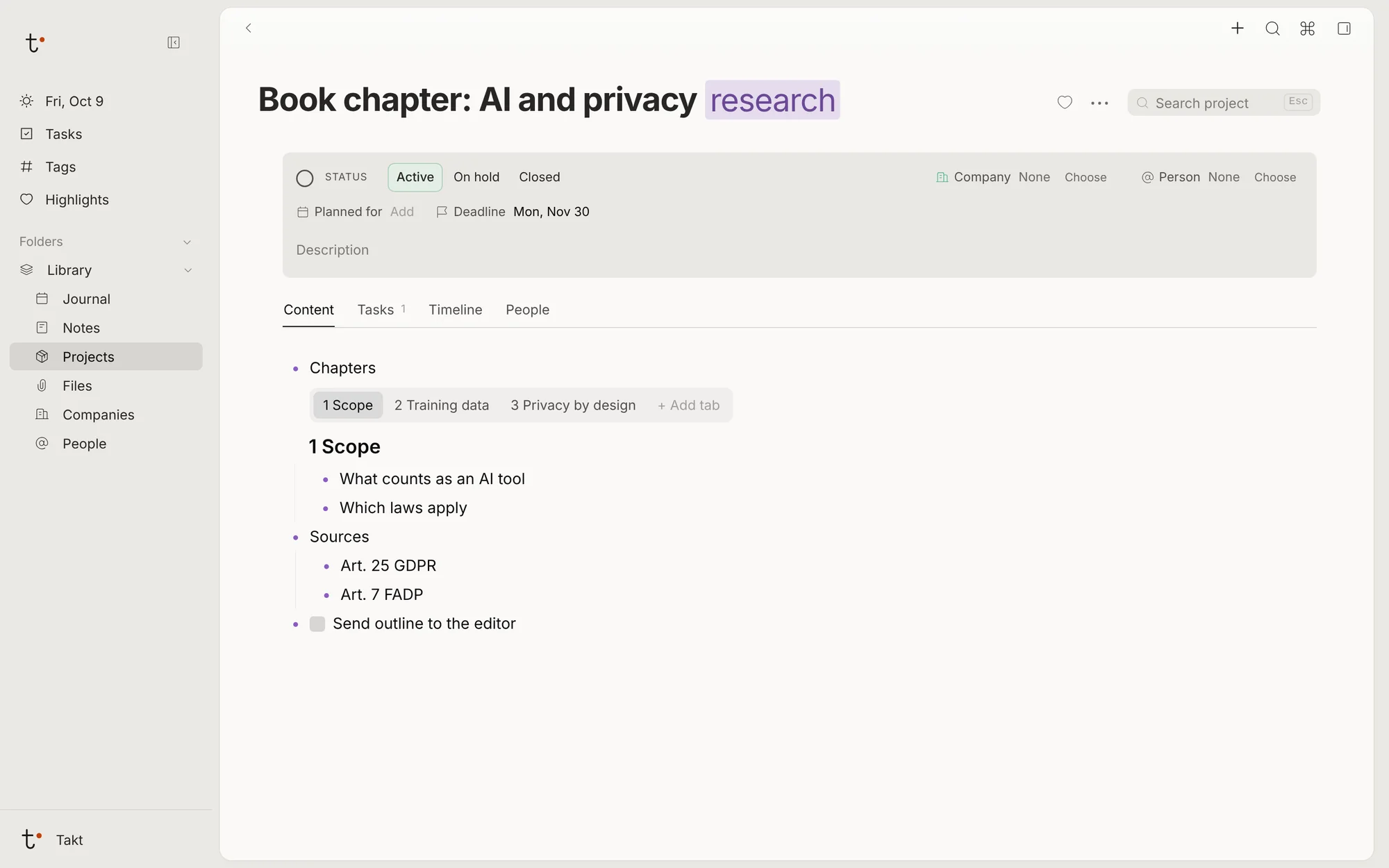
The sub-bullets of a bullet can be shown as a table, as tabs, as cards or as a list. They stay bullets, so each cell or tab can hold tasks, tags and links.
Tags, links and tasks on single bullets
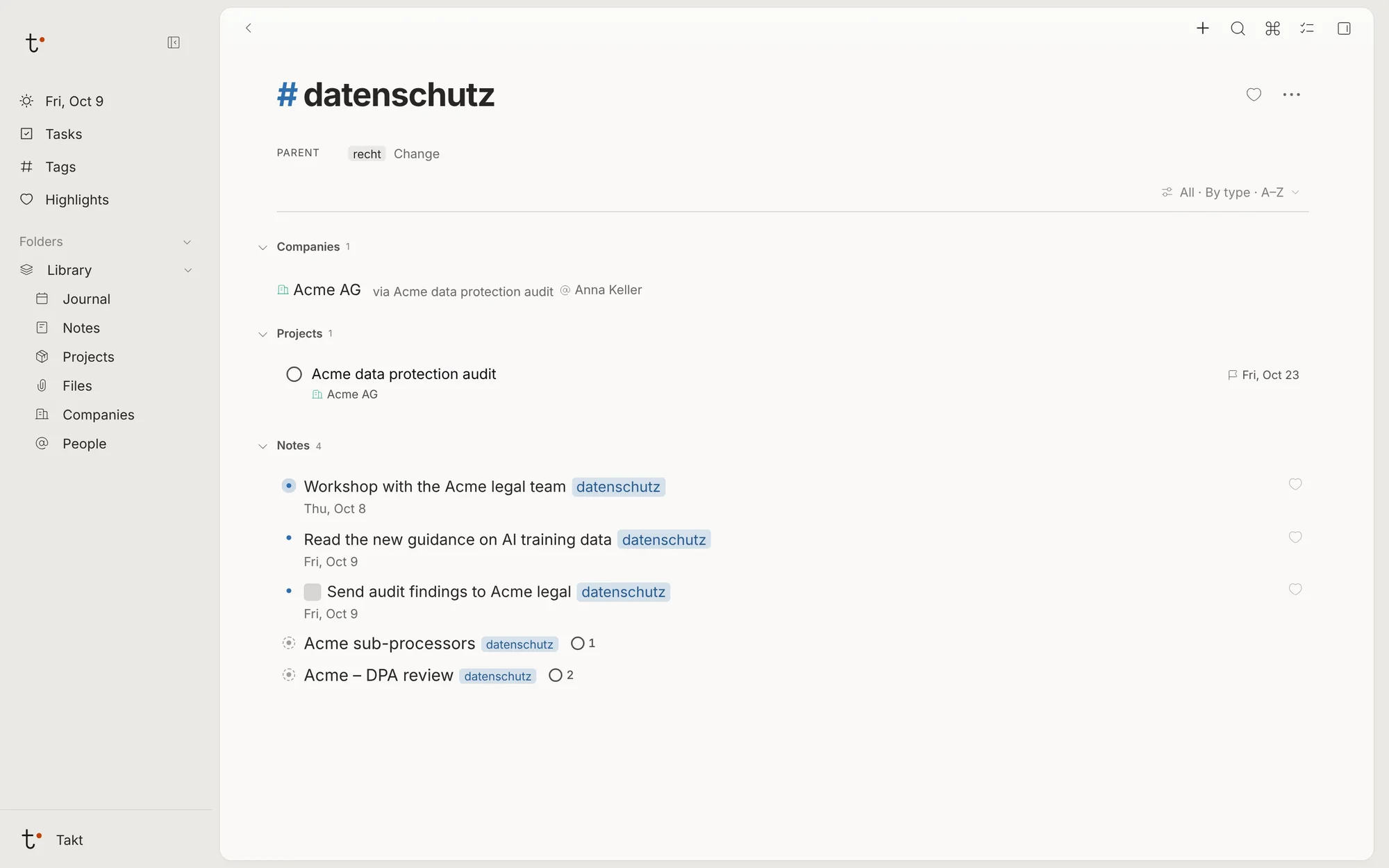
A tag, a link or a task belongs to the bullet where it is written, not to the whole note. A tag's page therefore lists the tagged bullets themselves, each with the note or day it comes from.
A bullet can be dragged by its dot to another place, with everything under it, or sent with Move to another note, a day, a new note or a new project.
The journal
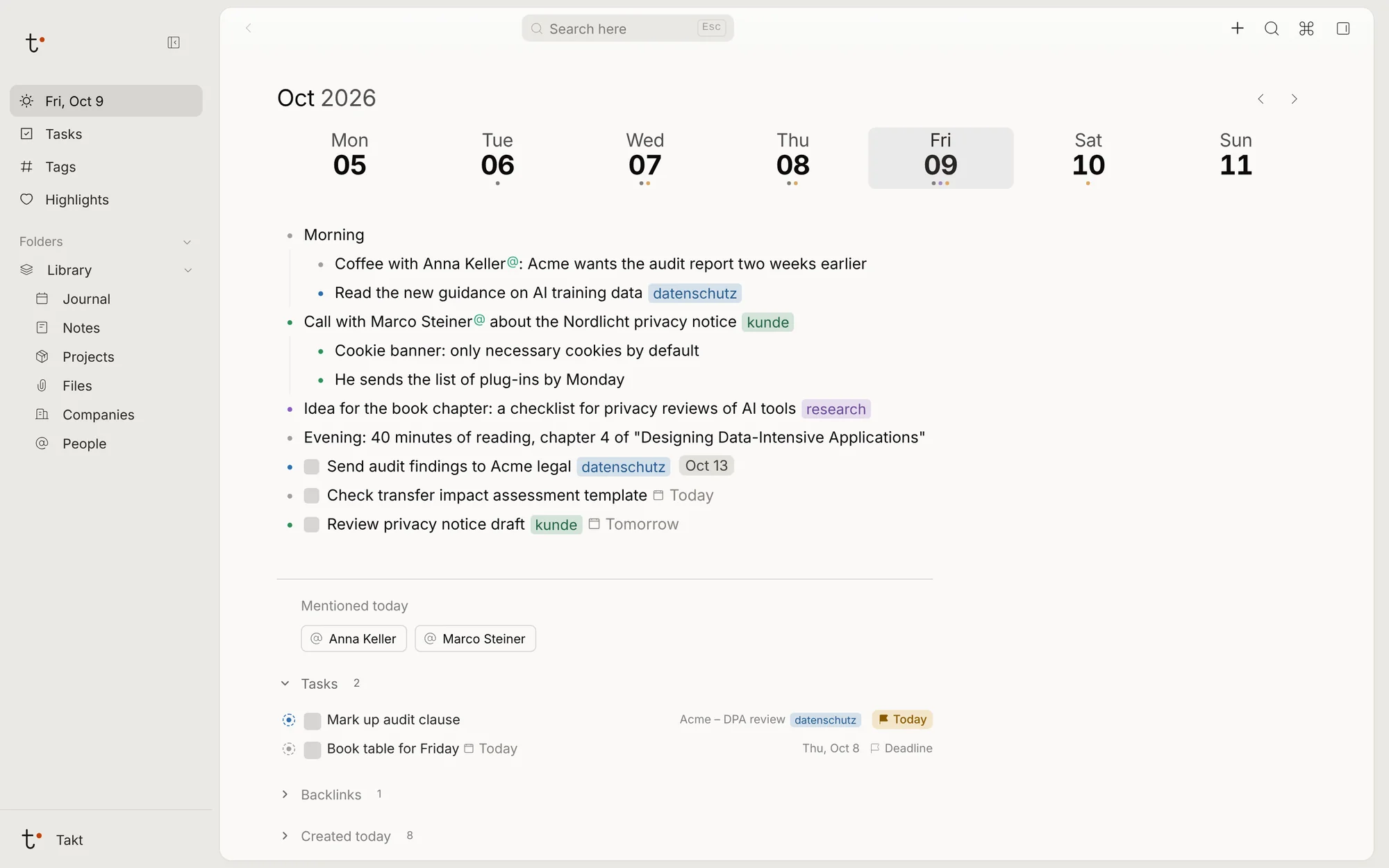
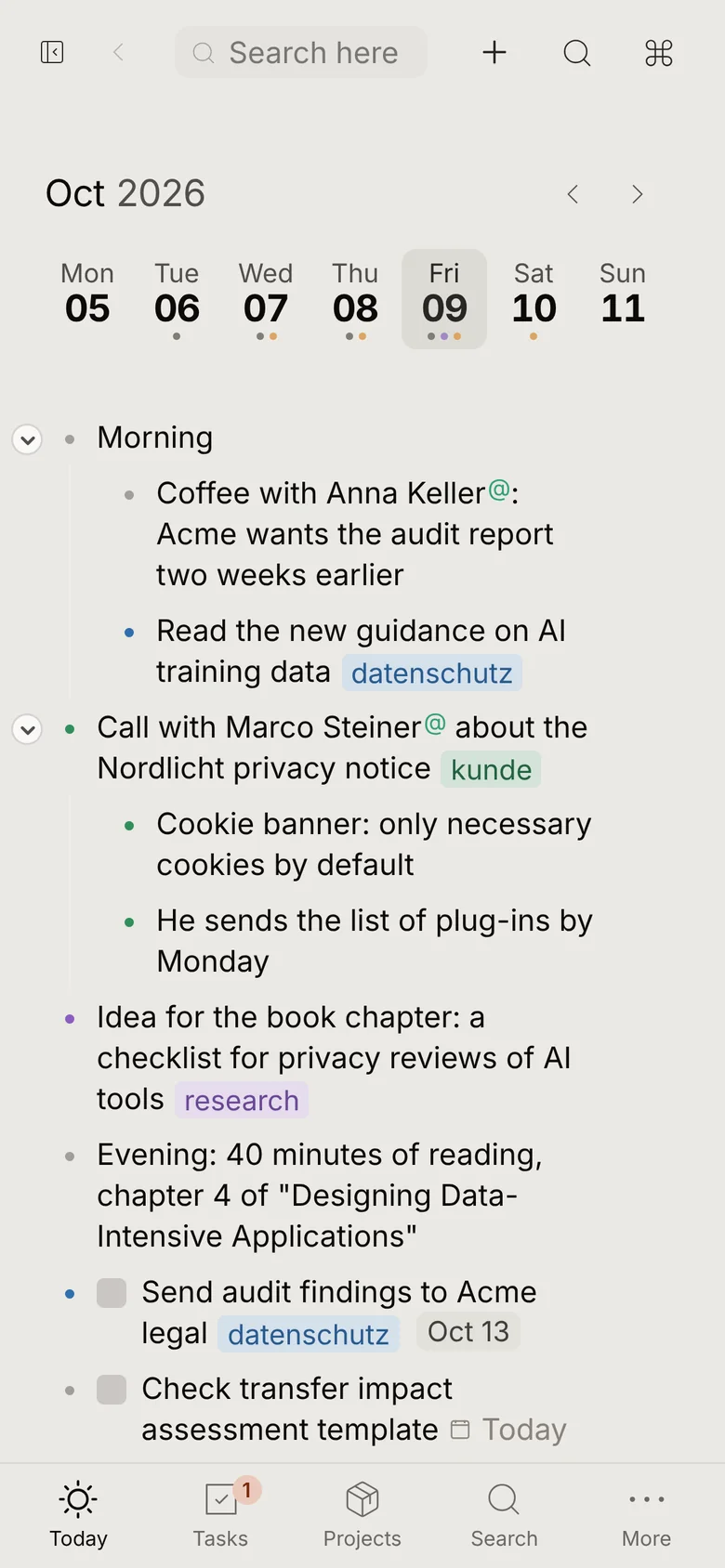
Each day has a page, and the app opens on today's. You write on it like in any note.
The strip at the top shows the week. A day has up to three dots: an entry, notes created that day, and tasks or projects planned or due. Around the entry, the page lists the people and companies the entry mentions, the tasks planned or due that day, the notes and days that link to it, and the notes created that day.
The task manager
A task is a bullet with a checkbox, written where it belongs: in a day, a note or a project. It can also stand alone.
A task has two dates. The planned date is the day you intend to work on it; the deadline is the day it must be done. Both are typed in the text: "Call Anna Friday !Monday" is planned for Friday and due on Monday. "every Monday" or "jeden 15." in the text makes a task repeat.
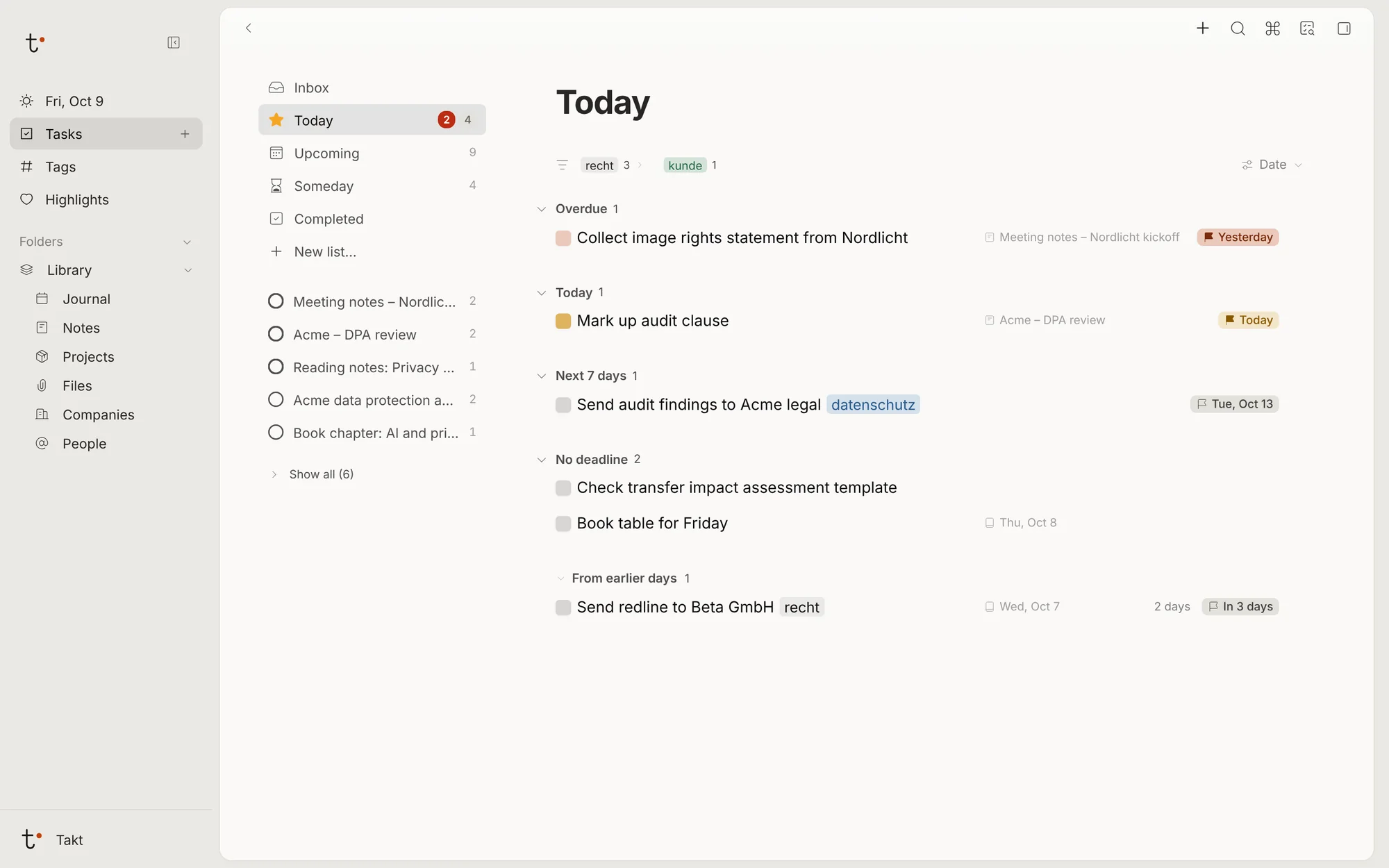
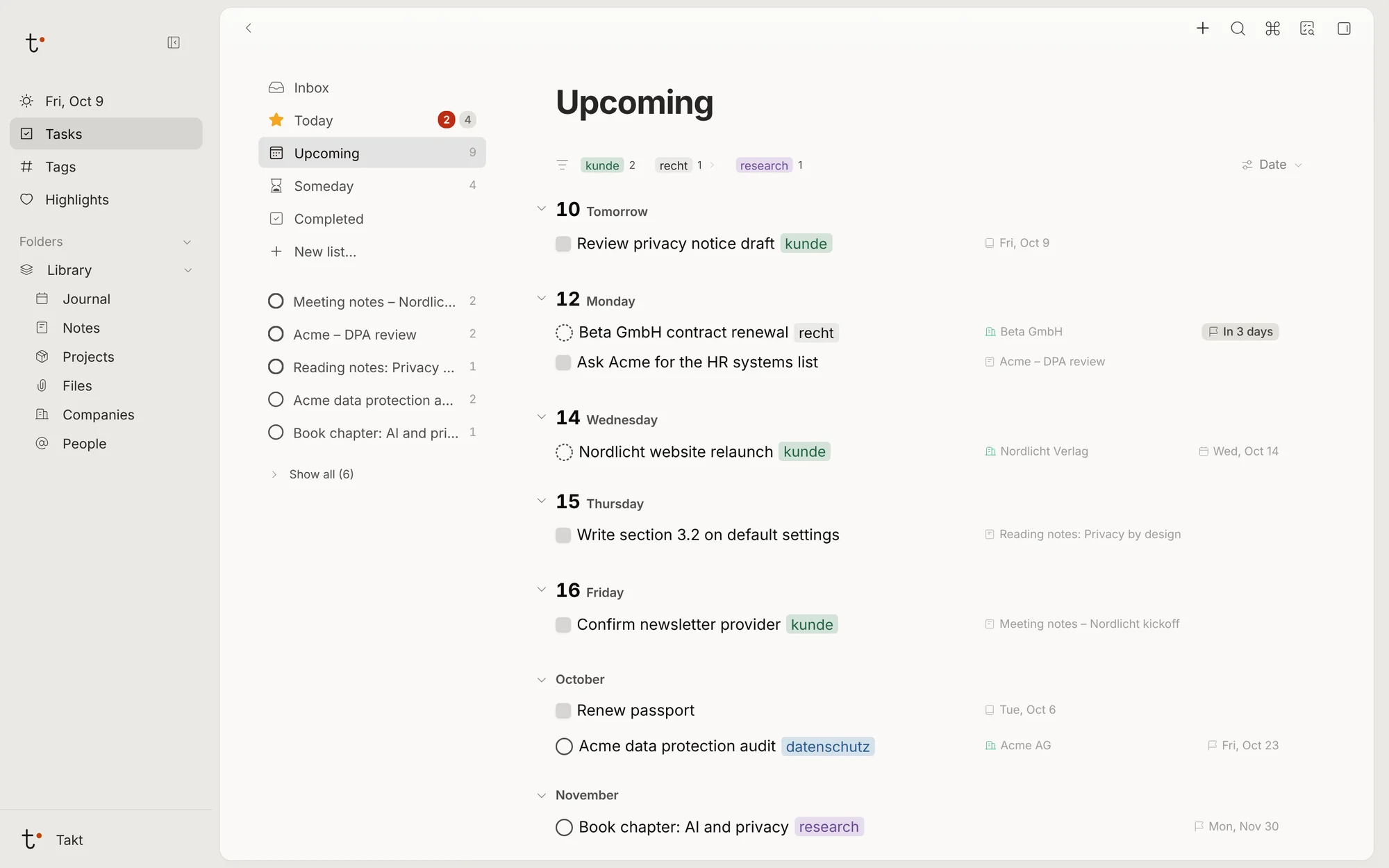
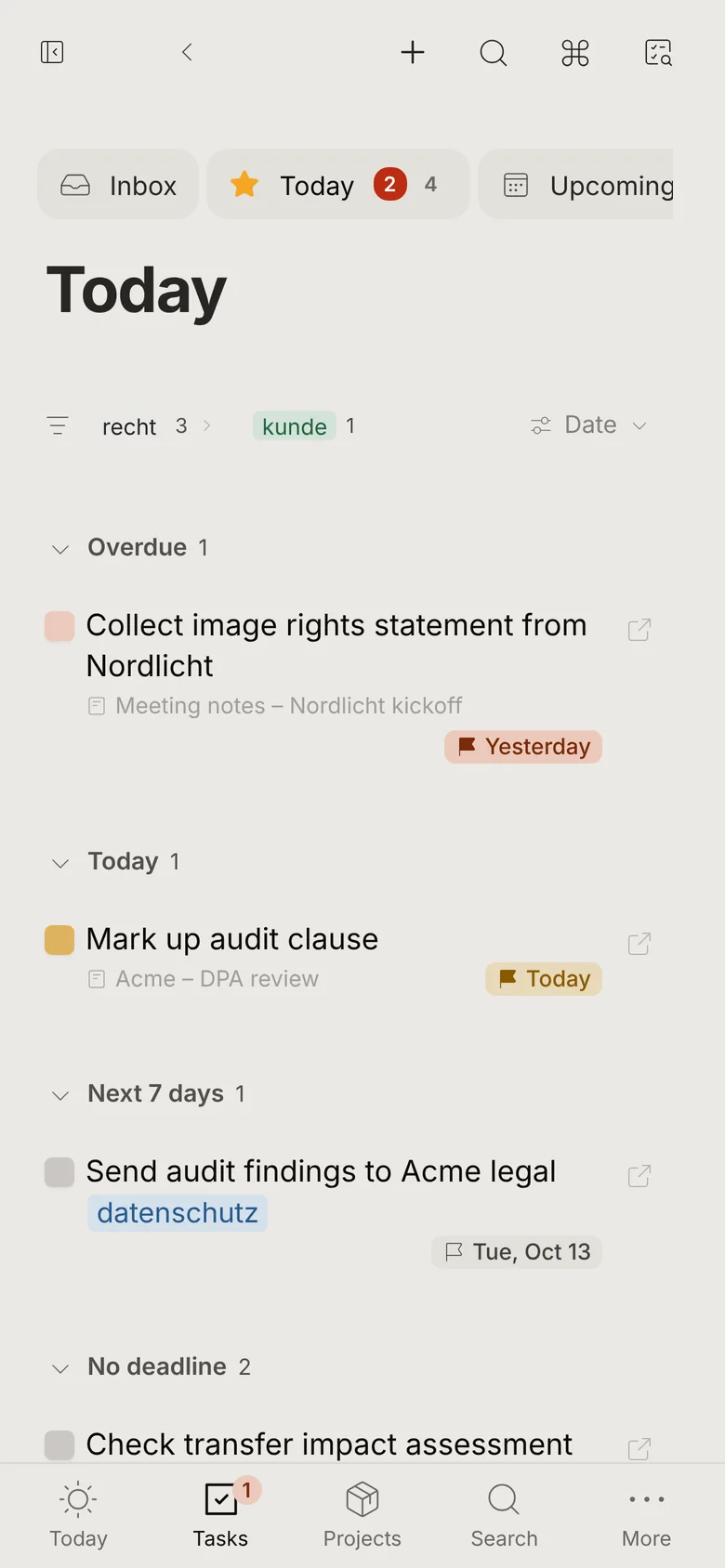
The Tasks page collects every task in these lists:
- Inbox
- Tasks without a note and without a date.
- Today
- What is overdue, due or planned today, and what is still open from earlier days.
- Upcoming
- Dated tasks and projects, by day and then by month.
- Someday
- Open tasks in notes and projects without a date.
- Completed
- Done tasks, by the day they were done.
Each row names the note or day the task comes from. A saved search such as #kunde due:week becomes a list of your own.
People, companies, projects and tags
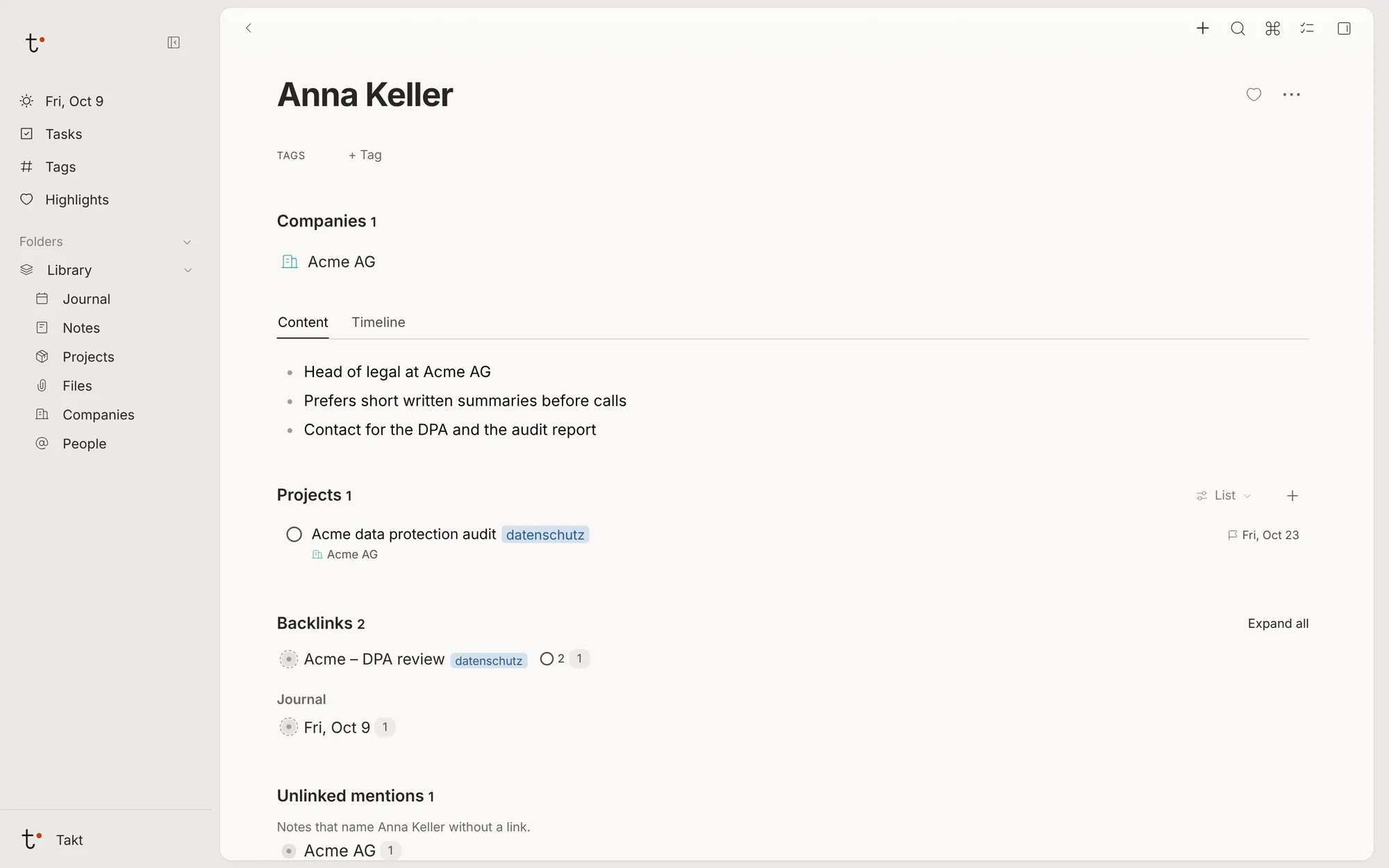
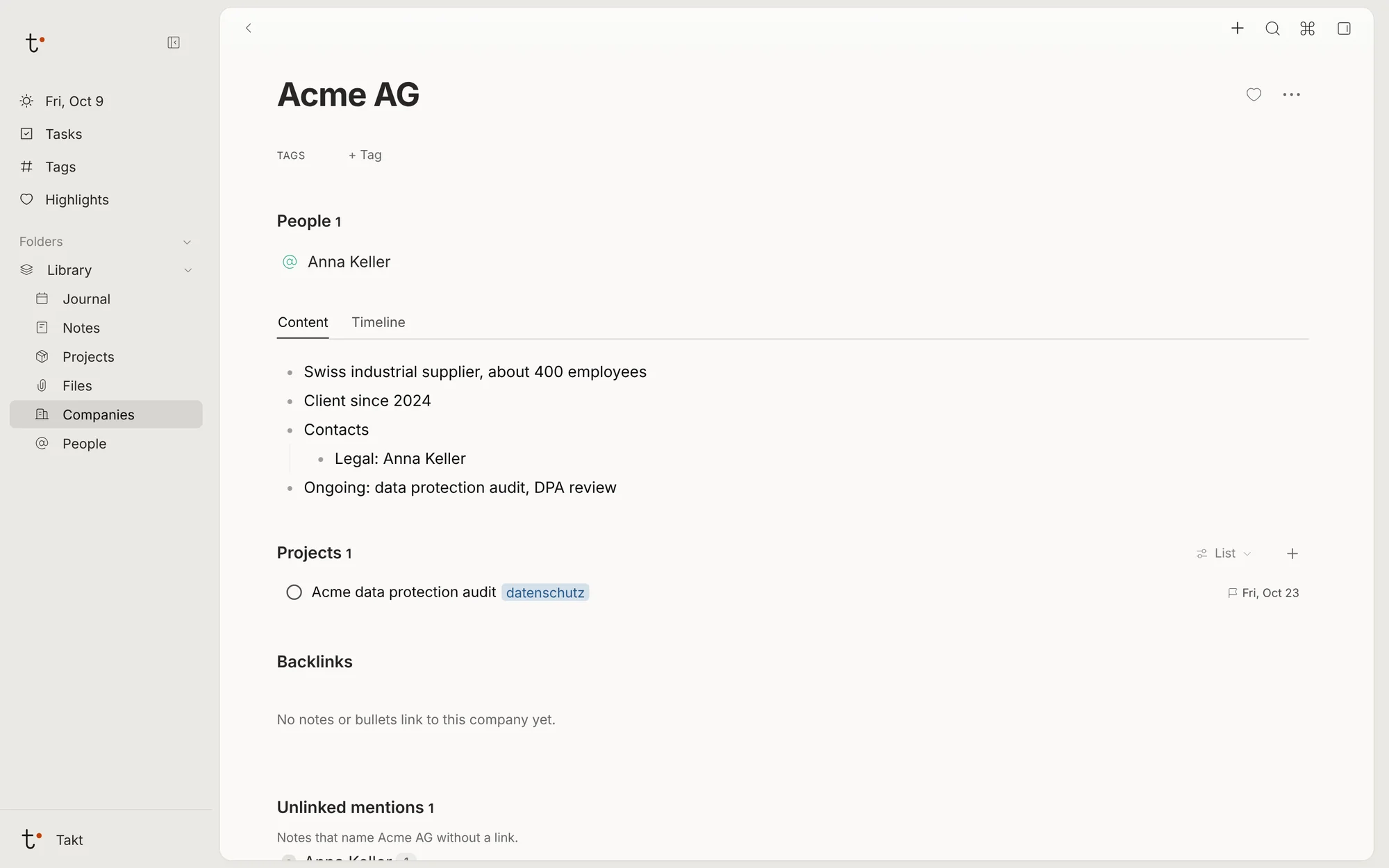
Typing @ and a name links a person or a company; the first time, it creates them. Each person, company, project and tag has a page that collects what refers to it.
- People and companies
- People can be assigned to companies. The page has its own outline for notes about them, and lists their projects, the notes and days that link to them, and the places where the name is written without a link.
- Projects
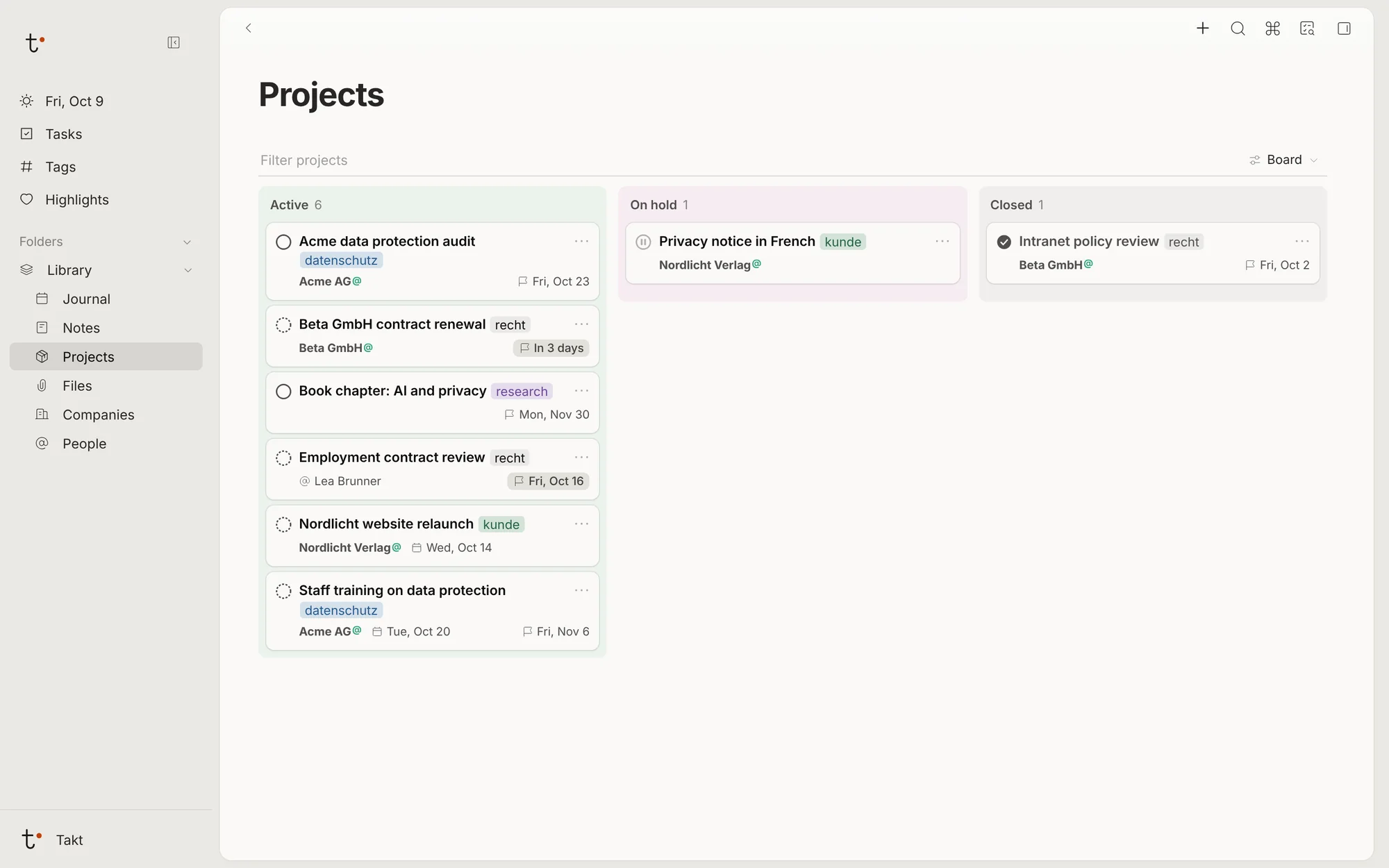
- A project is a note with a status, a planned date, a deadline, and a client: a company or a person. The Projects page shows them as a list, grouped by company, date or tag, or as a board with one column per status: Active, On hold and Closed. Dragging a card to another column changes its status.
- Tags
- A tag can have a parent tag. A tag's page includes its sub-tags, and also the projects of the companies that carry the tag.
- Folders
- Notes, projects, tasks, files, people and companies can be filed in folders. A saved search works as a folder whose content the search decides.
On the phone
On a phone, Takt runs in the browser and can be added to the home screen. A bar at the bottom leads to Today, Tasks, Projects and Search.
Other functions
- Search with AND, OR, NOT and brackets across words, tags, people and filters.
- Word, PDF, Excel, PowerPoint, Outlook and Markdown files become notes. Mail from addresses you allow is added to its day.
- Export of the whole archive as Markdown files; earlier versions of a note can be restored.
- Each device keeps a copy of the archive and works offline. The server is in Switzerland.
- Sign-in with a passkey or a password, optionally with a code from an authenticator app.
- A REST API and an MCP connector, through which an AI assistant can read and add to the archive with your permission.
Availability
Takt v2 is not yet available. The current version, Takt v1, is described on the main page.
Takt v1